Work on your mission, not fixing mistakes.
undo is an ME extension for adding regression (undo) functionality to DCS in the form of Ctrl+Z and a GUI toolbar button.
Features
Simple to install.
undo is easily installed by an executable, eliminating the headache of manual file edits or patching.
Easy to use.
Use the extension from either a GUI button in your toolbar or the Ctrl+Z keybind.
IC-compliant.
undo does not interfere with Integrity Check, allowing multiplayer to proceed without worrying about mod management.
Supported Actions
-
Unit / Group
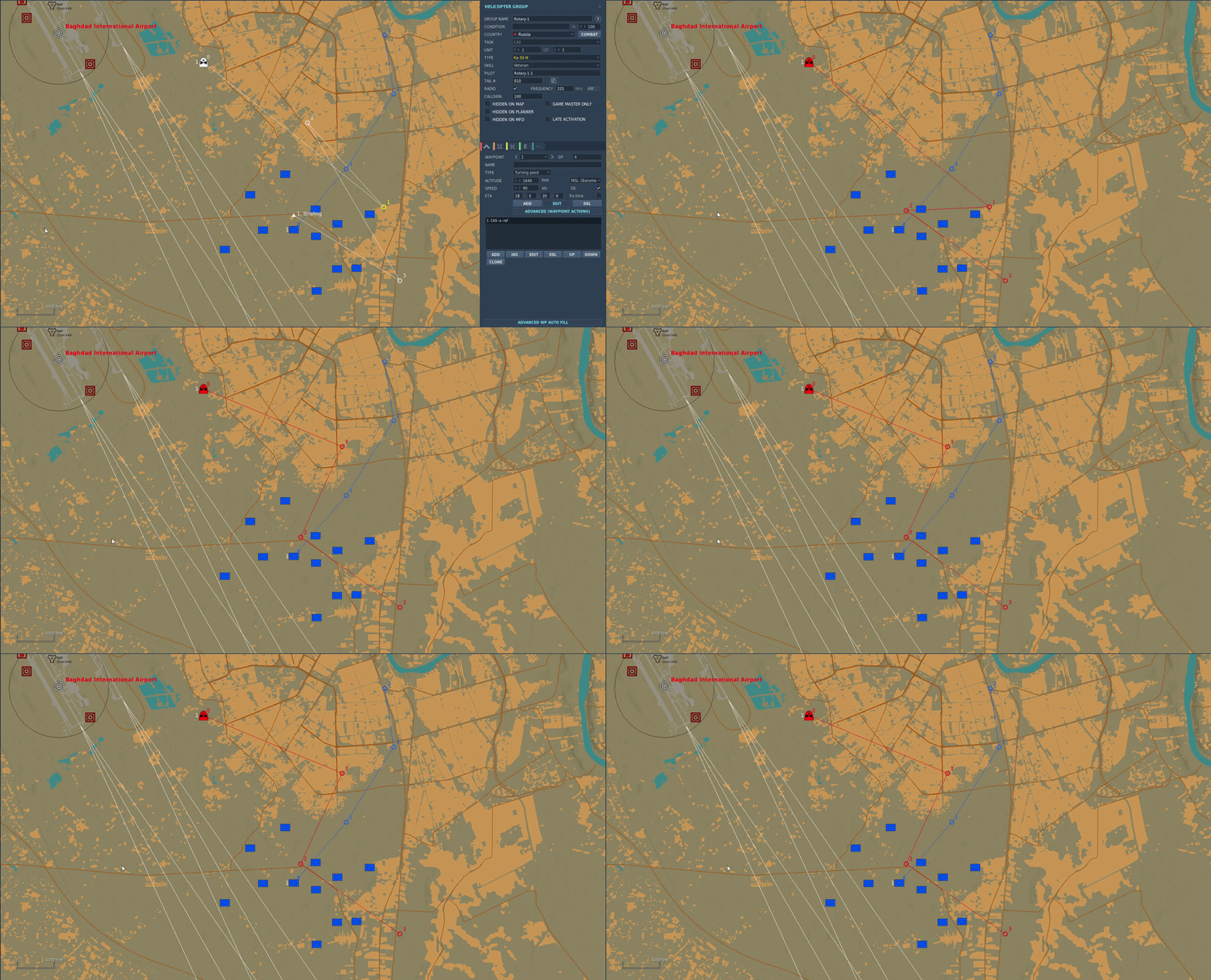
- moving a unit or any of a group's route waypoints on the map.
- deletion of a group re-inserts it exactly where it was.
- renaming a group or unit is tracked so a mistyped name is never permanent.
- heading is reverted to its prior value.
- skill level is reverted to its prior value.
-
Waypoint
- fields such as altitude, airspeed, ETA (time-on-target) & name changes.
- deletion of a route waypoint re-inserts it exactly where it was.
- actions for AI tasks such as creation & deletion.
How It Works
It's more than a "drag and drop," updates & repairs can also affect undo.
me_toolbar.lua and associated me_ files are checked.
Search for a unique, unmodified line of context to inject on.
Wrapped between SNWFKE_PATCH comments, no Lua file is replaced.
Build a .bak file for backup purposes, in case something goes wrong.
The feature is now live in your Mission Editor.
If a patch is already present, the file is skipped. (untouched) If the anchor can't be found or gets duplicated, the installer will flag it instead of allowing undesired behaviour.
Getting Started
First, obtain the latest release of undo. Once you open it, complete the installation steps.
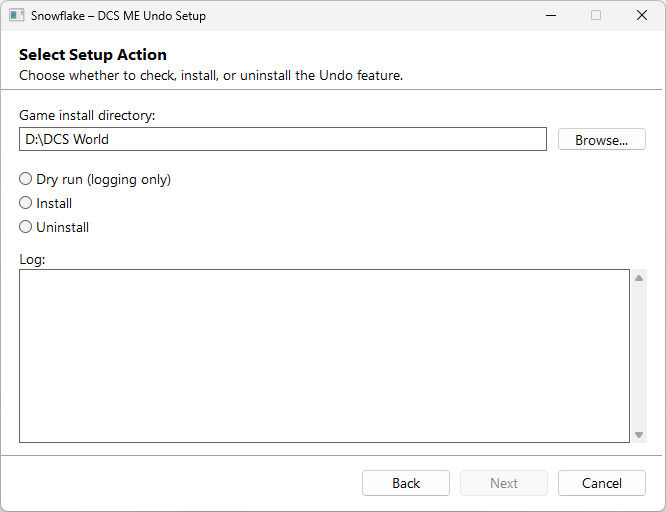
Download and run the wizard.
Download the installer executable and double-click it to open, no command-line is needed. There is a EULA for our software, meant for honouring open-source contribution.
Launch DCS and check the toolbar.
Open the Mission Editor and visually confirm a new button in the toolbar, (left side)
Ctrl+Z will be wired up automatically. You can also check your dcs.log to confirm a successful install.
-- Ctrl+F for "SNWFKE" entries
-- %USERPROFILE%\Saved Games\DCS\Logs\dcs.log
me_toolbar: snwfke.init() completed successfully.
me_toolbar: Ctrl+Z hotkey registered on window.
MissionEditor folder, which can wipe
out the button and callbacks. Just re-run the wizard if it happens, nothing else should need configuration.